Yes. On a computer, Chrome reads a web page aloud from Reading mode in the side panel; on Android, the same job is done by “Listen to this page” in the menu. Neither one reads a PDF or a Google Doc.
The confusion comes from the names. Google never put a button called “Read aloud” in Chrome, so people search for one, don’t find it, and decide the browser can’t do it. What exists is split across two features, depending on the device in your hands. Everything below was checked in October 2026 against Google’s help pages.
Does Chrome read aloud on a computer?
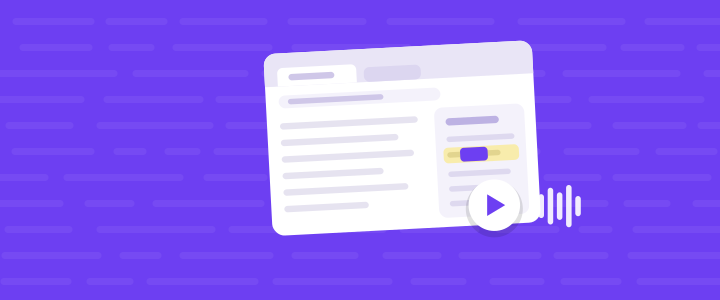
It does, through Reading mode. Right-click an article and choose “Open in reading mode”, or go to More → More tools → Reading mode (Alt+Shift+R on Windows, Linux and ChromeOS; ⌘+Option+R on a Mac). The page’s text opens in a side panel with a Play button at the top right, beside Pause, Previous and Next sentence, and a speed control. Under Settings you can pick a voice (“Voice selection”) and choose how the text is marked as it is read: “Adaptive highlighting”, “Word”, “Sentence” or “Off”. The first time, Chrome downloads Google’s natural voices for your language and falls back to the system voice if that fails. All of this is on Google’s Reading mode help page.
Is “Listen to this page” the same thing?
Not quite. “Listen to this page” is the Android version: tap More → Listen to this page, and a player appears at the bottom of the screen. Speed sits under “1.0x”, the voice and “Highlight text & auto scroll” under Options, and it keeps reading when you lock the phone. Two things to know from Google’s help page: it needs the “Make searches and browsing better” setting turned on, and where “AI playback” is available it is the default, turning the page into a podcast-style conversation instead of reading the words. Tap “Switch playback mode” and pick Standard playback for the actual text. Google’s page covers Android only; on a computer, look for Reading mode.
Will it read a PDF?
No. Reading mode works on pages with article text; Google’s page warns it may not work with image galleries, maps, forms, payment pages or login screens. A PDF in Chrome’s own viewer isn’t a web article, so Reading mode doesn’t do the job there, and neither does “Listen to this page”. The free routes that do work are in how to make Chrome read a PDF aloud.
Will it read a Google Doc?
Not on its own. Reading mode is built for article pages, and a Google Doc isn’t one. Docs has its own menu for this, but the free option only speaks through a screen reader that is already running, and “Listen to this tab” needs a paid plan. The details, and the free way that works on any account, are in how to have Google Docs read aloud to you.
Does it work offline?
Google’s pages don’t say, so treat it as unproven. On a computer, Reading mode downloads voices to your machine and falls back to the system voice, which is a good sign; on Android, standard playback needs the “Make searches and browsing better” setting, which suggests the page goes to Google first. Test it with Wi-Fi off before you count on it.
So when do you need an extension?
When the thing you need read isn’t a web article. Hearald is a free Chrome extension that reads web pages, PDFs, and Google Docs and Slides; for a Doc it fetches the Doc’s plain-text copy with your own signed-in session and opens it in its own reading view. The voices ship inside the extension and run on your computer, so nothing is sent to a server and it works with the Wi-Fi off. It highlights word by word and marks each section of a long page so you can jump between them. After a section you can write what you remember in a note, and the check lists the section’s key points and shows which ones your note missed, because listening alone isn’t enough: see what the research says about text to speech and studying.
The court held that a contract formed by silence is the exception, not the rule, and acceptance must normally be communicated to the offeror. Three narrow exceptions follow.
Check yourself
- On a computer, where does Chrome’s built-in read-aloud live, and how do you open it?
- You open a PDF in Chrome and go looking for Reading mode. What happens, and what should you do instead?
Show answers
- In Reading mode, in the side panel: right-click the page and choose “Open in reading mode” (or More → More tools → Reading mode), then press Play at the top right.
- Reading mode is for article pages, so it doesn’t read Chrome’s PDF viewer. Use a route built for PDFs, such as the ones in the PDF guide, or an extension that reads PDFs directly.
Try it
If the page you need read is a PDF, a Doc, or just long, give it a shot and put it in your browser.